Troubleshooting
Browser Microphone Permissions
Fix common browser permission problems when the recorder cannot access your microphone.
Record Audio to Text →Last updated: 2026-06-29 · 7 min read
Check the permission prompt
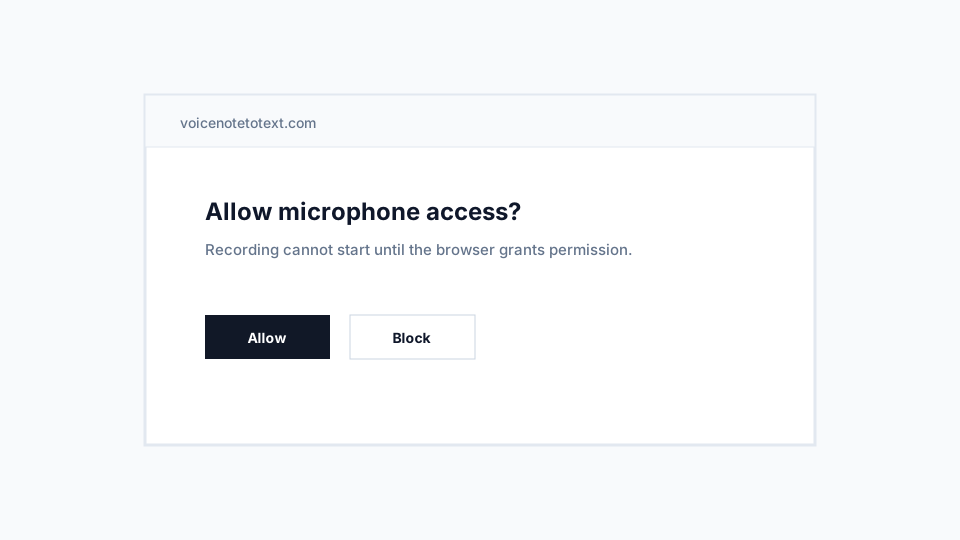
When you start recording, the browser should ask for microphone access. Choose Allow if you want to record. If you choose Block, the recorder cannot capture audio.
Some browsers remember a blocked decision. Use the address-bar permission icon or browser settings to allow microphone access for the site again.
Check device input settings
If permission is allowed but audio is silent, check that the operating system has a working microphone selected. External headsets can also become disconnected or muted.
Try recording a short test clip before important audio. If the test is silent, fix the device input before transcribing.
Recommendations
- Use HTTPS, which the production site provides, because browsers require secure contexts for microphone access.
- Close other apps that may be controlling the microphone.
- Refresh the page after changing permissions.
Limitations
- Some embedded browsers inside social apps restrict microphone access.
- Work-managed devices may enforce microphone policies.